Translations:Running the game with Heroic Games Launcher/11/en
From Ymirheim Wiki
- Download the Ymirheim Launcher installer via the Closed Beta Test #2 post by clicking on the text Download The Launcher.
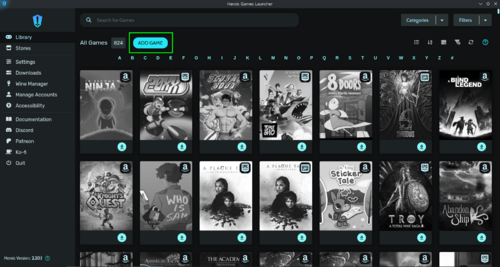
- Open the Heroic Games Launcher application, which you installed earlier, and in the Library option, click on ADD GAME;
- In the Game/App Title field, enter Ymirheim Launcher;
- In the App Image field, type https://ymirheim.org/files/images/box-art.jpg;
- In the Select Platform Version to Install field, select Windows;
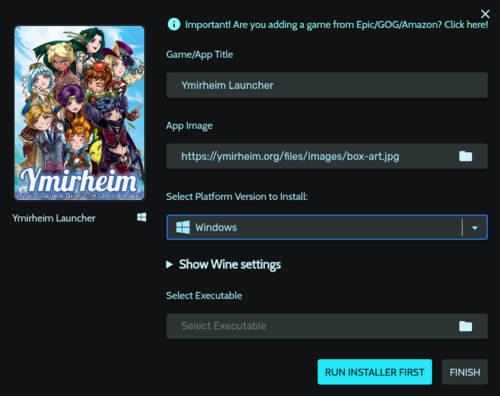
- Expand the Show Wine settings option;
- In the WinePrefix field, leave the default or change it to your preference;
- In the Wine version field, select GE-Proton-latest
- Now, in the Select Executable field, select the Ymirheim Launcher installer by clicking the folder icon and navigating to the directory where you downloaded it;
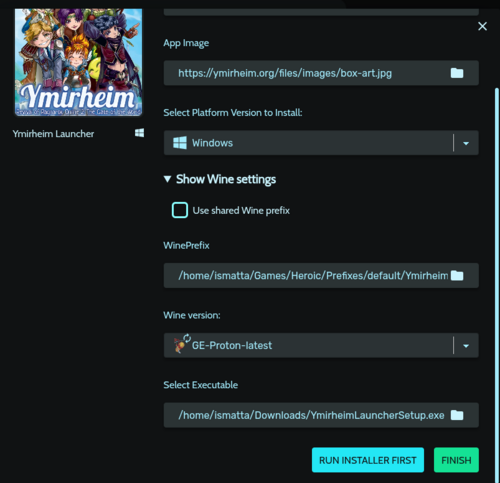
- Click on Finish.
- Before we begin the installation process, I recommend the following steps to avoid permission errors and facilitate the installation of the launcher.
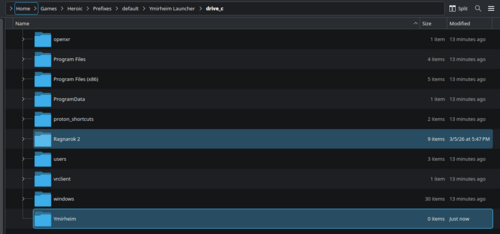
- Access the directory you defined in the WinePrefix field; if you left the default, it should look something like this:
/home/USER/Games/Heroic/Prefixes/default/Ymirheim Launcher/ - Copy the game folder into the drive_c directory.
- Also create a new folder called Ymirheim, we will use it during the installation.
- We can now launch the launcher through the Heroic Games Launcher by clicking the Play Now button.
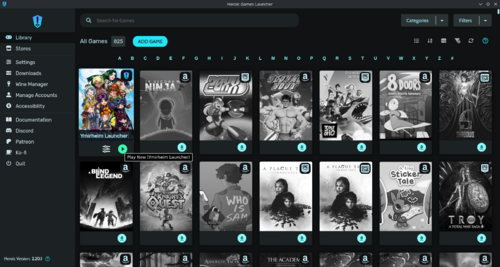
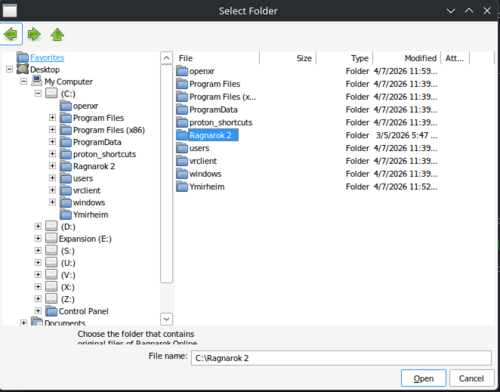
- The installation process will begin. When prompted to choose the game folder, simply select the one we copied to the C: directory and wait for verification.
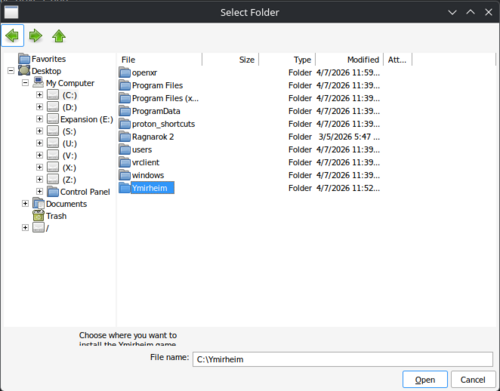
- Next, it will ask for the folder for the client patch; select the folder Ymirheim that we also created in the C: directory.
- If you have any questions about the installation steps, please consult the official article on the project's wiki.
- Upon completion of the installation, the launcher should open and begin downloading client updates. Please wait for this process to finish completely.
- When the updates are finished, the Start button will become accessible.


