Translations:Running the game with Lutris/12/en
From Ymirheim Wiki
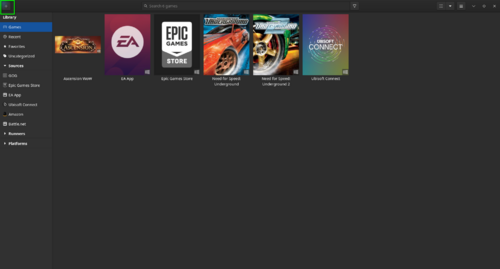
- Open Lutris and click the + button located in the upper left corner of the window.
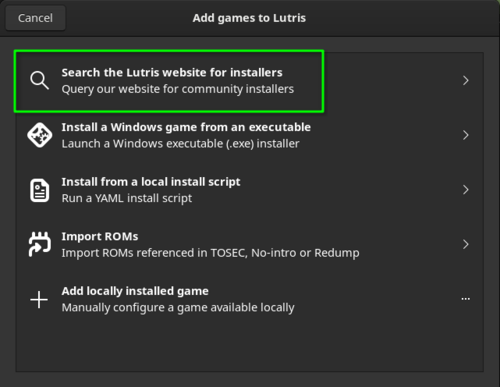
- In the window that opens, click on the option Search the Lutris website for installers.
- In the next window, Lutris will ask you to type your search term; search for Ymirheim and click on the result Ymirheim Launcher.
If you're unable to find Ymirheim Launcher in the results, you can download the install scripts here.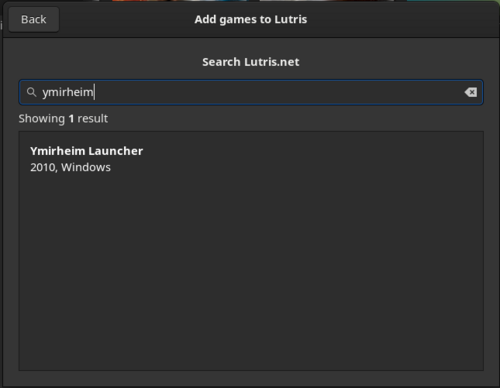
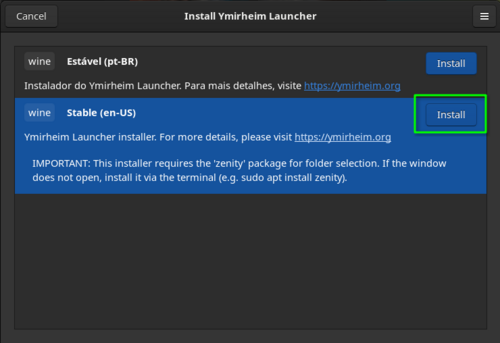
- The installers will be displayed; simply select the installer version you wish to use and click Install. Currently there are two, one in Brazilian Portuguese (pt_BR) and one in American English (en-US).
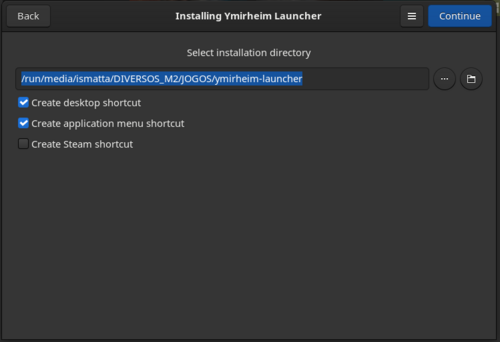
- Now it will ask you where you want to save the Wine prefix and will give you options to create shortcuts; fill it in as you prefer.
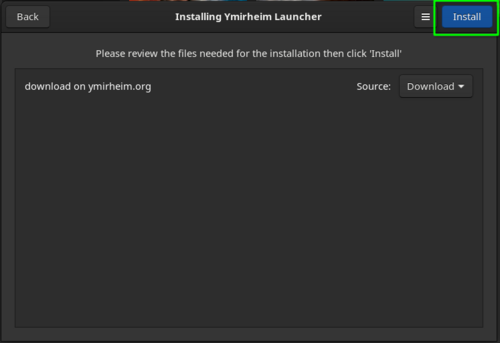
- The next screen will display the resources that will be downloaded; leave them as is and click Install again.
- The program will begin downloading and then create the wine prefix, please wait!
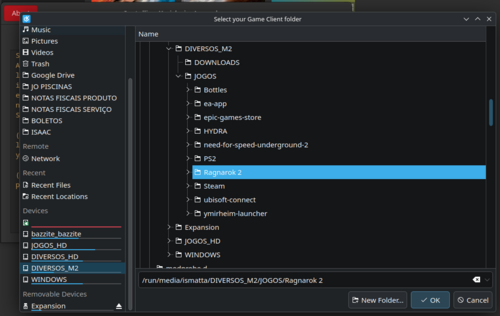
- Next, the program will ask you to select the game folder. Once selected, the installer will temporarily copy it into the Wine folder. Please wait!
- The installation will continue and Lutris will install all the necessary dependencies for the launcher to function perfectly, please wait!
- Upon completing the previous step, the prefix configuration will be finalized and the Launcher installation process will begin.
- The installer will ask you to select the game folder, simply go to the C: directory and select the folder RO2, which was created temporarily during the prefix setup.
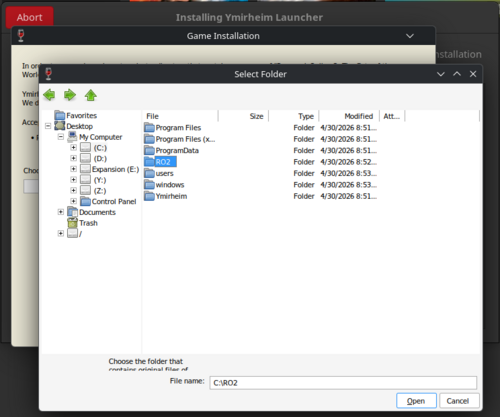
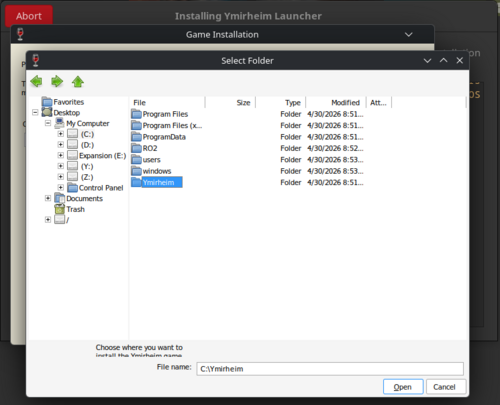
- Next, it will ask for the folder for the client patch; select the folder Ymirheim, it was created during the prefix configuration.
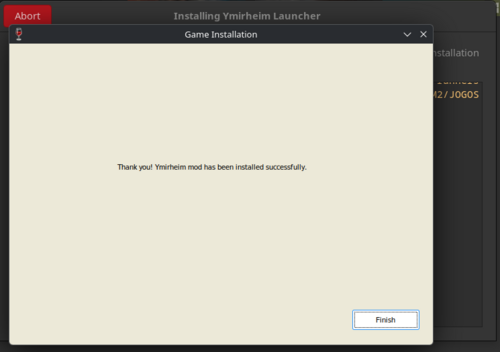
- After completing the previous procedure, the installation will be finished; simply click on Finish.
- If you have any questions about the installation steps, please consult the official article on the project's wiki.
- Upon completion of the installation, the launcher should open and begin downloading client updates. Please wait for this process to finish completely.
- When the updates are finished, the Start button will become accessible.
- Close the launcher to finish installing Lutris!


