Running the game with Heroic Games Launcher
There are several ways to install the Ymirheim Launcher on Linux, but in this article we will cover the installation via the Heroic Games Launcher.
To see other ways of running the game on Linux, see the main article.
If you have any suggestions or improvements to the steps in this tutorial, please let us know so we can revise it.
Note: We will present the steps in the simplest way possible, we will not use the terminal in any of the steps. However, if you are experienced with Linux, you can install it however you prefer!
Environment: Bazzite 43 Nvidia Edition (bazzite-nvidia:stable)
Installing Heroic Games Launcher
Officially, there are several ways to install the Heroic Games Launcher. All of them can be found on their official download page on their website.
For our guide, we will use the Flatpak installation because it is simpler and provides the best experience on any Linux distribution.
I will use the installation through the app store, in my case Bazzar. Most app stores have Flatpak applications. If your Linux distribution doesn't have it, follow the installation steps on the Heroic Games Launcher website.
- Go to the store and search for Heroic Games Launcher
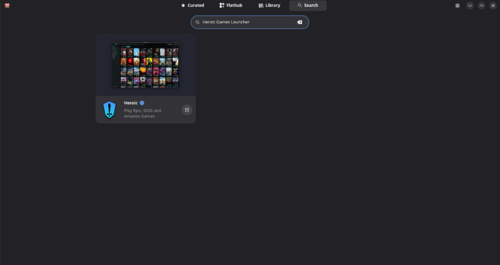
- Click to install the option found and wait for it to finish.

Downloading and installing the Ymirheim Launcher
- Download the Ymirheim Launcher installer via the Closed Beta Test #2 post by clicking on the text Download The Launcher.
- Open the Heroic Games Launcher application, which you installed earlier, and in the Library option, click on ADD GAME;
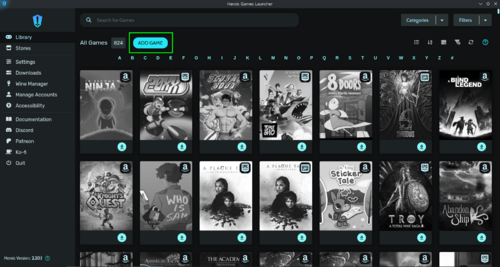
- In the Game/App Title field, enter Ymirheim Launcher;
- In the App Image field, type https://ymirheim.org/files/images/box-art.jpg;
- In the Select Platform Version to Install field, select Windows;
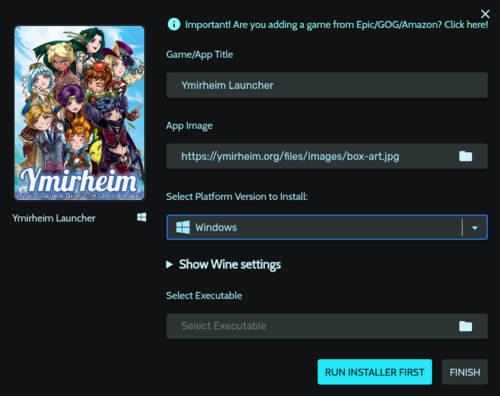
- Expand the Show Wine settings option;
- In the WinePrefix field, leave the default or change it to your preference;
- In the Wine version field, select GE-Proton-latest
- Now, in the Select Executable field, select the Ymirheim Launcher installer by clicking the folder icon and navigating to the directory where you downloaded it;
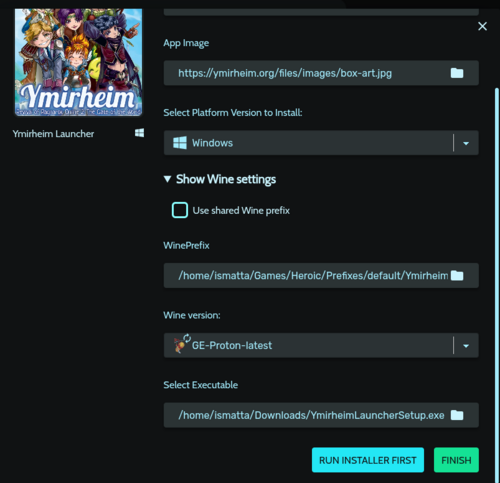
- Click on Finish.
- Before we begin the installation process, I recommend the following steps to avoid permission errors and facilitate the installation of the launcher.
- Access the directory you defined in the WinePrefix field; if you left the default, it should look something like this:
/home/USER/Games/Heroic/Prefixes/default/Ymirheim Launcher/ - Copy the game folder into the drive_c directory.
- Also create a new folder called Ymirheim, we will use it during the installation.
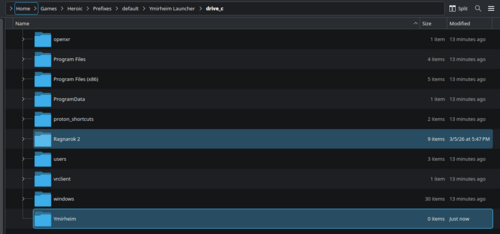
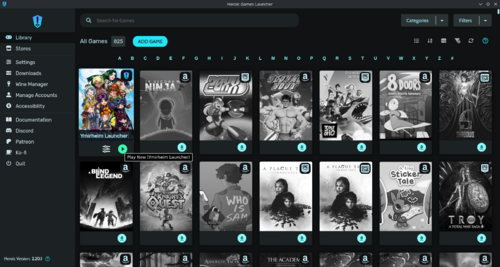
- We can now launch the launcher through the Heroic Games Launcher by clicking the Play Now button.
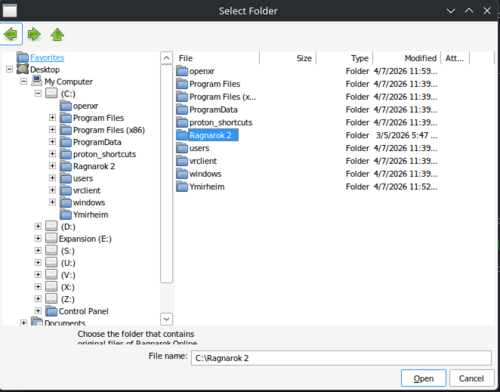
- The installation process will begin. When prompted to choose the game folder, simply select the one we copied to the C: directory and wait for verification.
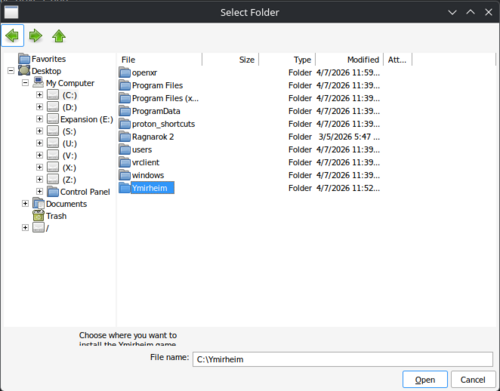
- Next, it will ask for the folder for the client patch; select the folder Ymirheim that we also created in the C: directory.
- If you have any questions about the installation steps, please consult the official article on the project's wiki.
- Upon completion of the installation, the launcher should open and begin downloading client updates. Please wait for this process to finish completely.
- When the updates are finished, the Start button will become accessible.


Running the game
After all these steps are successfully completed, you will be able to start the game at any time by clicking Play Now in the Heroic Games Launcher or even through the shortcut created on your Linux distribution's desktop.
Final Considerations
If you want to customize the desktop icon, or if for some reason the icon is incorrect, you can use the installer's native icon by accessing the C: directory of the Wine prefix and going to the proton_shortcuts/icons folder and choosing the size you prefer.
