Running the game with Lutris
There are several ways to install the Ymirheim Launcher on Linux, but in this article we will cover the installation via the Lutris.
To see other ways of running the game on Linux, see the main article.
If you have any suggestions or improvements to the steps in this tutorial, please let us know so we can revise it.
Note: We will present the steps in the simplest way possible, we will not use the terminal in any of the steps. However, if you are experienced with Linux, you can install it however you prefer!
Environment: Bazzite 43 Developer Experience Nvidia Edition (bazzite-dx-nvidia:stable)
Installing the Lutris
Officially, there are several ways to install the Lutris. All of them can be found on their official download page on their website.
For our guide, we recommends the Flatpak installation because it is simpler and provides the best experience on any Linux distribution.
Most app stores have Flatpak applications. If your Linux distribution doesn't have it, follow the installation steps on the Lutris website.
Installing the Ymirheim Launcher
Lutris has an automatic installation tool that uses community-created installers available on the game's website. We've prepared this installer to ensure everyone has a simple and error-free installation!
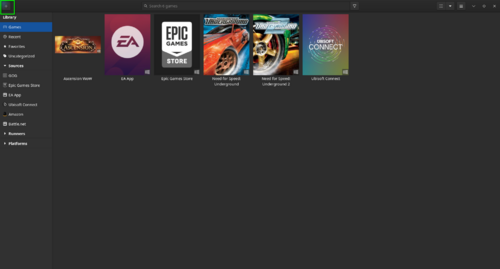
- Open Lutris and click the + button located in the upper left corner of the window.
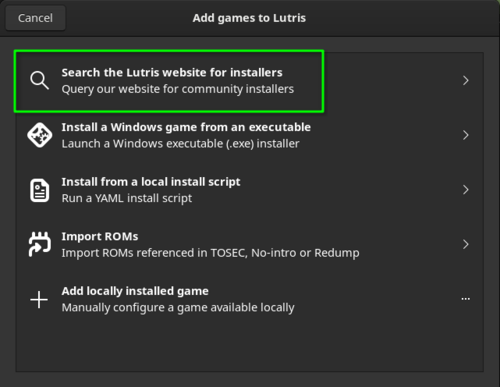
- In the window that opens, click on the option Search the Lutris website for installers.
- In the next window, Lutris will ask you to type your search term; search for Ymirheim and click on the result Ymirheim Launcher.
If you're unable to find Ymirheim Launcher in the results, you can download the install scripts here.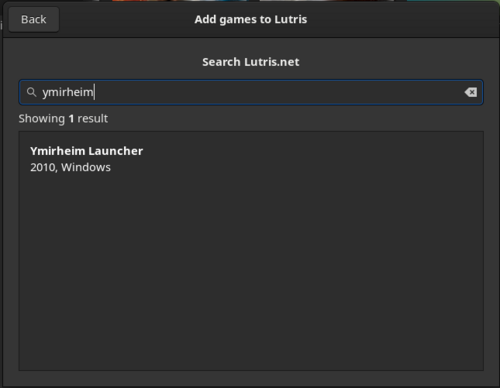
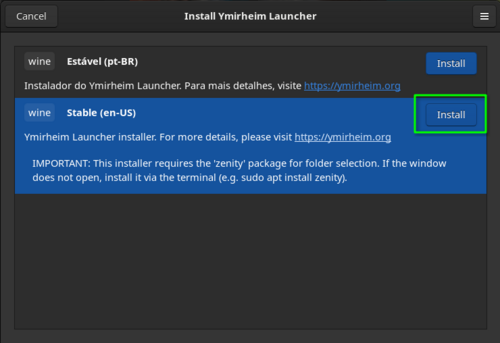
- The installers will be displayed; simply select the installer version you wish to use and click Install. Currently there are two, one in Brazilian Portuguese (pt_BR) and one in American English (en-US).
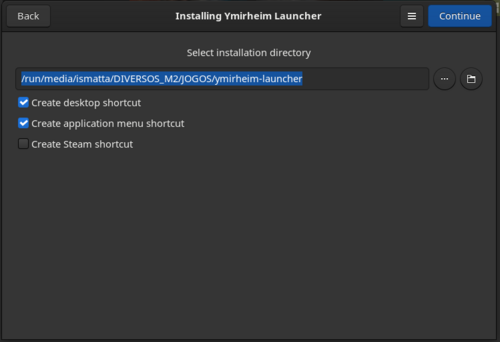
- Now it will ask you where you want to save the Wine prefix and will give you options to create shortcuts; fill it in as you prefer.
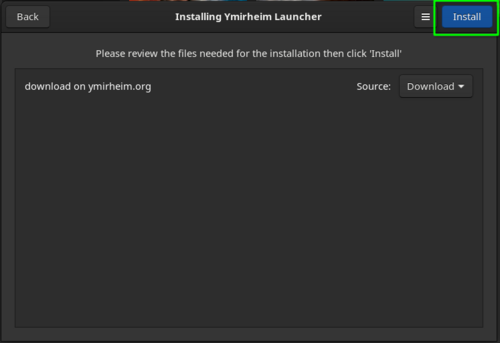
- The next screen will display the resources that will be downloaded; leave them as is and click Install again.
- The program will begin downloading and then create the wine prefix, please wait!
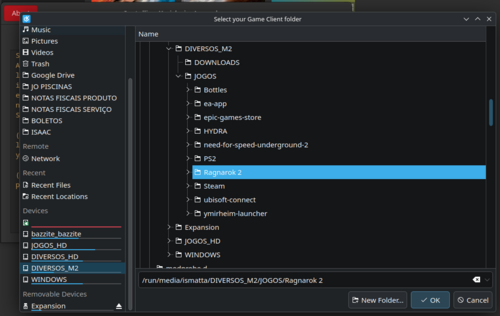
- Next, the program will ask you to select the game folder. Once selected, the installer will temporarily copy it into the Wine folder. Please wait!
- The installation will continue and Lutris will install all the necessary dependencies for the launcher to function perfectly, please wait!
- Upon completing the previous step, the prefix configuration will be finalized and the Launcher installation process will begin.
- The installer will ask you to select the game folder, simply go to the C: directory and select the folder RO2, which was created temporarily during the prefix setup.
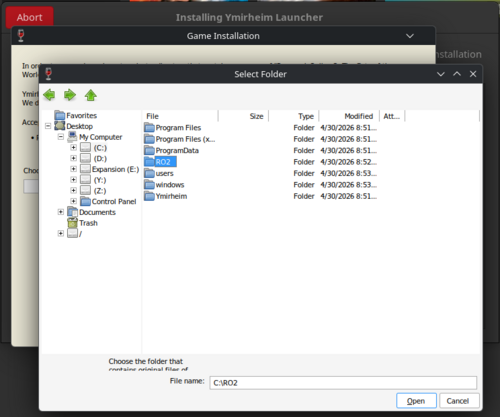
- Next, it will ask for the folder for the client patch; select the folder Ymirheim, it was created during the prefix configuration.
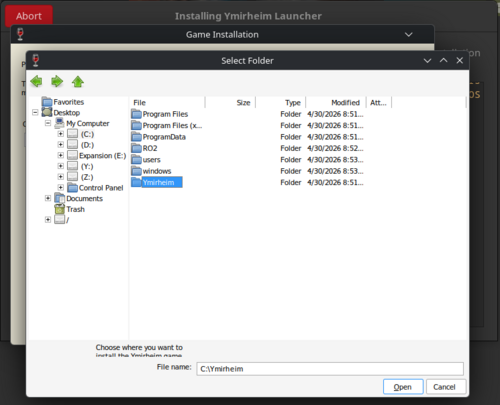
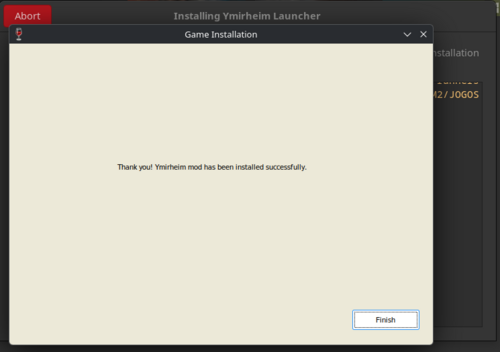
- After completing the previous procedure, the installation will be finished; simply click on Finish.
- If you have any questions about the installation steps, please consult the official article on the project's wiki.
- Upon completion of the installation, the launcher should open and begin downloading client updates. Please wait for this process to finish completely.
- When the updates are finished, the Start button will become accessible.
- Close the launcher to finish installing Lutris!


Running the game
After all these steps are successfully completed, you will be able to start the game at any time by clicking Play in the Lutris or even through the shortcut created on your Linux distribution's desktop.